




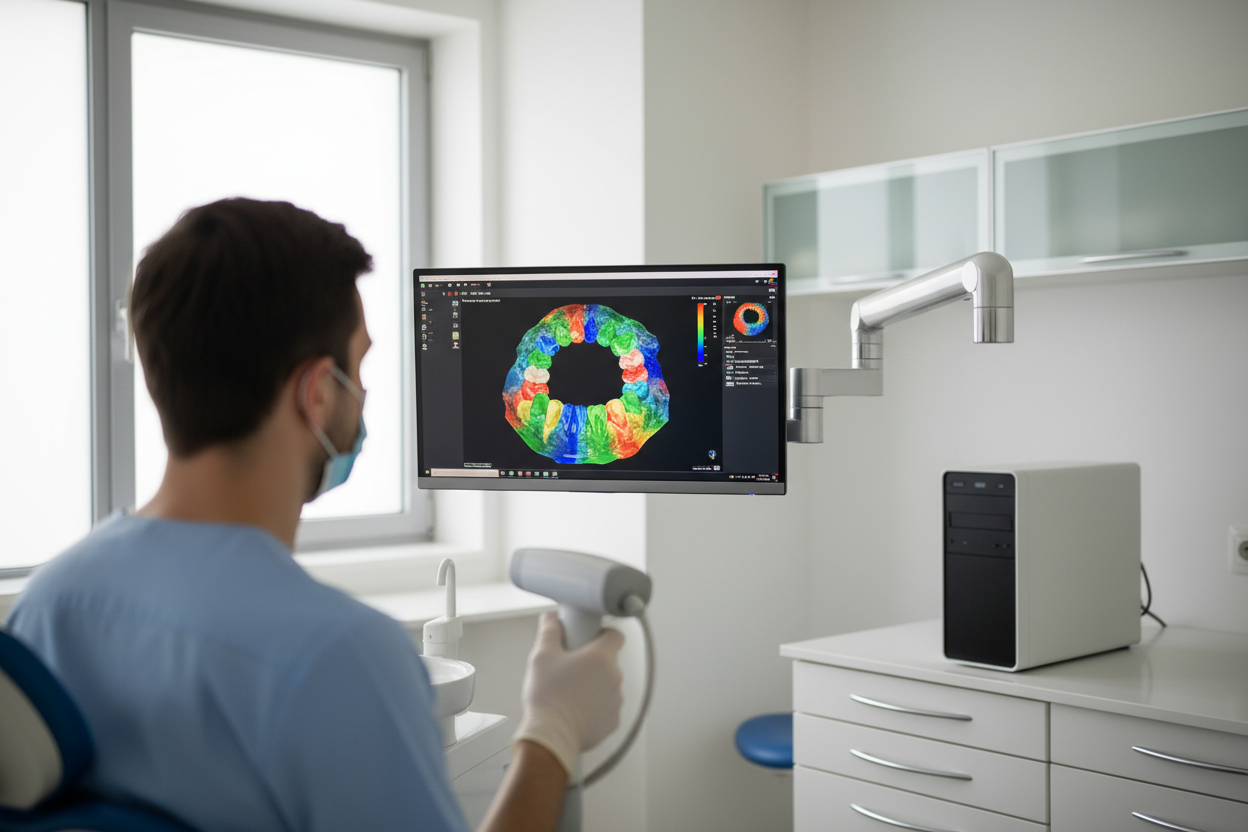
Integrating intraoral scanners into your dental clinic’s digital workflow means seamlessly incorporating digital impression technology into every stage of patient care, from scan acquisition to laboratory communication. This transition is increasingly important for UAE dental clinics aiming to enhance efficiency, improve patient experience, and streamline collaboration with dental laboratories. Intraoral scanners, such as the Medit and Panda models, are integral to digital dentistry and play a key role in a modern, computerised workflow.
This guide will walk you through the practical steps of digital integration, focusing specifically on Medit and Panda intraoral scanners. You will learn how to prepare your clinic, set up the scanner, master scanning techniques, manage digital files, communicate with labs, and train your team for optimal results. By following this step-by-step approach, UAE dentists can confidently adopt digital workflows that support clinical excellence and practice growth.
Understanding Digital Workflow Integration in Dentistry
Digital workflow integration in dentistry refers to the seamless coordination of digital technologies—such as intraoral scanners, CAD/CAM software, and digital communication platforms—throughout the patient care process. Intraoral scanners (IOSs) are essential to this workflow, providing the initial digital impressions that serve as the foundation for subsequent diagnostic, restorative, and laboratory steps (S1, S5). For UAE dental clinics, moving to a digital workflow can offer notable benefits, including streamlined communication with dental laboratories, improved patient experience, and enhanced accuracy in restorative outcomes (S3, S8). However, challenges may include upfront investment in technology, staff training, and ensuring compatibility across digital systems. Intraoral scanners specifically occupy the critical first stage of the digital workflow, capturing precise 3D data that replaces traditional impressions and enables efficient integration with design and manufacturing processes (S5).
Preparation: Assessing Clinic Readiness and Infrastructure
Before integrating an intraoral scanner into your digital workflow, a structured assessment of your clinic’s infrastructure is essential. Start with a checklist: ensure operatory space can accommodate scanner hardware, and verify that computers meet the manufacturer’s recommended specifications for processor speed, RAM, and graphics capabilities. Reliable high-speed internet is critical for cloud-based file transfer and software updates. Assess your current imaging systems and practice management software for compatibility with scanner output formats, such as STL and PLY, which are foundational to digital workflows in dentistry (S2). General manufacturer guidance also recommends confirming that your network security supports secure data transfer and that there is a designated area for scanner calibration and maintenance (W8). For a deeper dive into budgeting and infrastructure requirements, see this guide to intraoral scanner total cost in UAE.
Step 1: Setting Up Your Intraoral Scanner
Initial Installation
Begin by carefully unboxing your intraoral scanner—whether it is the Intraoral scanner MEDIT i900 or a Panda Intraoral Scanner—following manufacturer instructions to avoid damage. Place the scanner in a stable, accessible location near the dental chair, ensuring adequate space for both the device and operator movement. Connect the scanner to your clinic computer using the recommended USB or docking cable, and ensure a reliable power supply. For networked models, connect to your clinic’s secure Wi-Fi or Ethernet network as specified in the user manual.
Calibration & Software Setup
Install the scanner’s dedicated software on your clinic computer, following on-screen prompts. Initial calibration is required to ensure accurate digital impressions; this typically involves scanning a supplied calibration object or following a guided routine. After calibration, test the scanner’s integration with existing imaging systems by importing a sample scan and verifying compatibility. Most intraoral scanners capture 3D data for use as the foundation of the digital workflow, replacing traditional impressions and streamlining subsequent steps.1,2
Step 2: Digital Impression Workflow—Scanning Techniques and Best Practices
The digital impression process with the Intraoral scanner MEDIT i900 and Panda Intraoral Scanner begins with careful patient preparation and moisture control. For accurate data capture, start by scanning the occlusal surfaces, then proceed to the buccal and lingual areas in a continuous motion. Both scanners support efficient quadrant or full-arch workflows as needed; the Medit i900 is specifically designed for ergonomic handling. Studies indicate that consistent scanning patterns and steady hand movement help minimise errors such as stitching artefacts or missed data points1. To avoid common mistakes, ensure the scanner tip is kept at the recommended distance from the teeth and avoid abrupt movements. Full-arch scans may require additional attention to overlap and scan path, especially in cases with extensive restorations2. For further details on intraoral scanner accuracy in implant cases, see this practical guide.
Step 3: Software Integration and Digital File Management
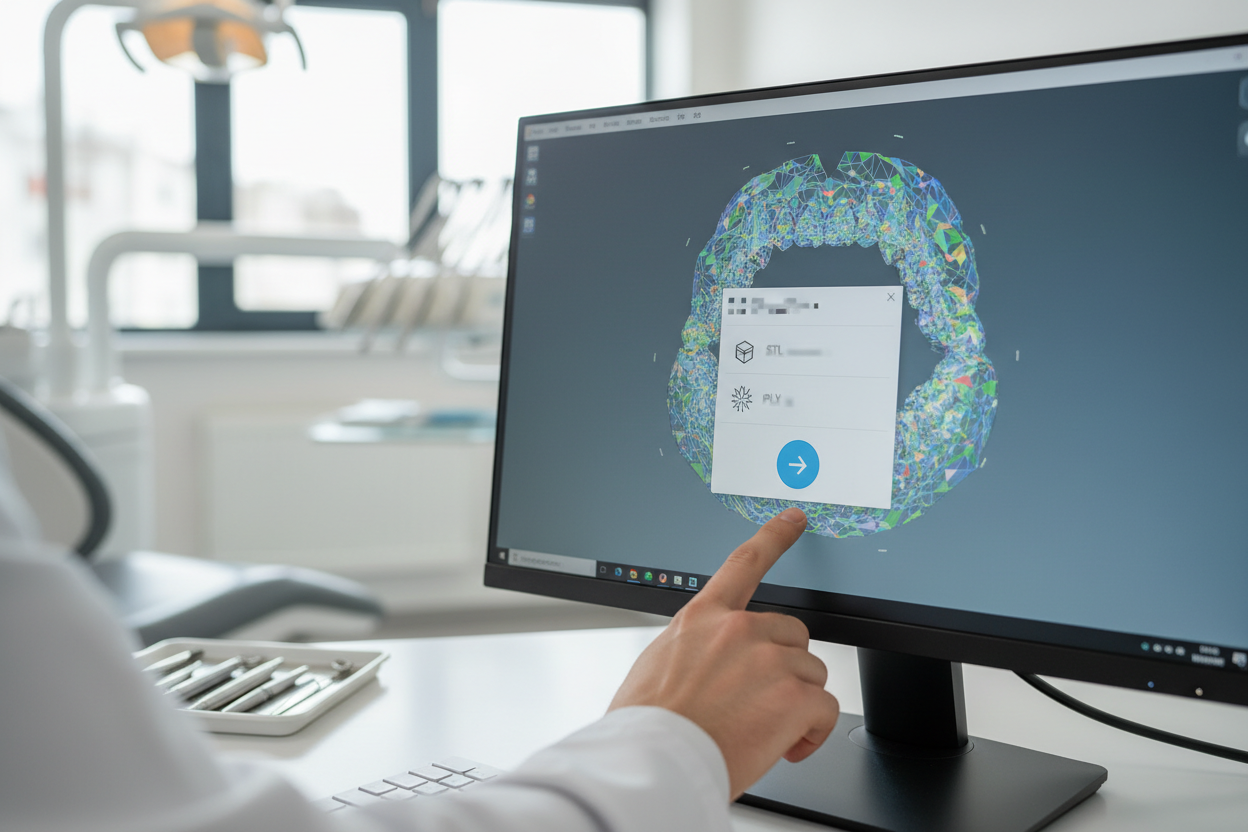
Effective digital workflows in dentistry rely on standardised file formats. Both Medit and Panda intraoral scanners support widely used formats such as STL and PLY, which facilitate compatibility with CAD design software and dental labs. STL files are commonly used for restorative workflows, while PLY files can store additional colour and texture data, enhancing communication with labs and design teams (see guidance on evaluating intraoral scanner files).
After scanning, digital impressions can be reviewed on the scanner’s software interface, allowing clinicians to identify and correct errors before exporting. Organising files by patient, date, and case type is essential for efficient retrieval and transfer. Integration with practice management and design software is possible via direct import of supported formats, streamlining case planning and documentation. For seamless laboratory transfer, ensure that exported files meet the lab’s requirements and confirm compatibility to prevent workflow interruptions.
Step 4: Communication with Dental Laboratories
Effective digital communication with dental laboratories is fundamental for a seamless digital workflow. Intraoral scanner outputs from systems like Medit and Panda can be sent to labs via direct cloud sharing, secure email with attached STL or PLY files, or by uploading to a designated lab portal. It is important to confirm that your chosen laboratory in the UAE supports these digital formats and transfer methods, as compatibility is crucial for efficient collaboration.
| Transfer Method | Speed | Security | Lab Compatibility | Notes |
|---|---|---|---|---|
| Cloud Sharing | Fast | High | Most digital labs | Requires account |
| Email (STL/PLY) | Moderate | Depends on encryption | Universal | File size limits |
| Lab Portal Upload | Fast | High | Partner labs | Portal access needed |
For optimal results, verify file compatibility, clarify turnaround times, and confirm receipt of files with the lab. If transfer issues arise, check internet stability, file size, and software updates. Open communication and clear protocols help minimise errors and delays in the UAE’s fast-paced dental environment.
Step 5: Team Training and Workflow Optimisation
Successful integration of intraoral scanners into a dental clinic’s workflow relies heavily on comprehensive team training. Key elements include hands-on sessions with the scanner hardware and software, familiarisation with scanning protocols, and understanding digital file management. Regular workshops and manufacturer-provided tutorials help ensure all team members are comfortable with the technology and can troubleshoot basic issues independently.
Ongoing staff development is essential for maintaining proficiency and reducing errors. Clinics should schedule periodic refresher courses and encourage open communication to address workflow challenges as they arise. Documented protocols for scanning, file export, and data transfer support consistency and minimise mistakes.
In busy UAE clinics, workflow optimisation may include assigning specific roles for scanning and digital data management, streamlining patient flow to minimise chairside time, and leveraging digital tools for appointment scheduling and case tracking. These strategies can enhance efficiency and support a smoother transition to a fully digital workflow.
Comparing Medit and Panda Intraoral Scanners for UAE Clinics
Choosing the right intraoral scanner is essential for seamless digital workflow integration in UAE dental clinics. Below is a concise comparison of the Intraoral scanner MEDIT i900 and Panda Intraoral Scanner, focusing on features relevant to daily clinical use and workflow compatibility.
| Feature | MEDIT i900 | Panda |
|---|---|---|
| Supported File Formats | STL, PLY (manufacturer guidance) | STL, PLY (manufacturer guidance) |
| Physical Setup | Ergonomic, smooth touch interface | Standard handheld design |
| Integration | Compatible with most imaging/CAD systems | Compatible with most imaging/CAD systems |
| Recommended Clinic Size | Small to large clinics | Small to medium clinics |
For clinics with higher patient volume or a focus on ergonomic efficiency, the Intraoral scanner MEDIT i900 may suit those seeking advanced handling and broad compatibility. Panda scanners are suitable for clinics seeking straightforward digital impression capture. For more detail on scanner selection and workflow fit, see this comparative guide.
Conclusion
Integrating intraoral scanners into your dental clinic’s digital workflow is a structured process that brings tangible improvements to both patient care and operational efficiency. By following a stepwise approach—from assessing your clinic’s readiness and setting up your Medit or Panda scanner, to mastering digital impression techniques, managing digital files, communicating with laboratories, and training your team—you can ensure a smooth transition to digital dentistry.
- Evaluate your clinic’s IT infrastructure and workflow needs.
- Install and calibrate your intraoral scanner according to manufacturer guidance.
- Adopt best practices for accurate and efficient digital impressions.
- Integrate scanner outputs seamlessly with your digital management and laboratory systems.
- Invest in ongoing team training and workflow optimisation.
Studies suggest that digital workflows, with intraoral scanners as a key component, can enhance communication with dental laboratories, support more predictable treatment planning, and streamline clinical procedures (S1, S3, S5). UAE dentists who embrace these technologies position their clinics for greater productivity and improved patient experiences. Taking the next step in digital transformation is a practical investment in the future of dental care.
Frequently Asked Questions
What is the first step in integrating an intraoral scanner into a dental clinic?
Begin by assessing your clinic’s IT infrastructure and preparing for device installation.
How do I ensure my digital impressions are compatible with dental labs?
Use standard file formats like STL and confirm lab software compatibility before sending files.
What team training is required for intraoral scanner workflows?
Training should cover scanner operation, software use, and digital file management.
Can Medit and Panda scanners be used for all types of dental impressions?
These scanners are designed for a variety of digital impressions, but always check specific application guidance.
References
- Fully digital workflow, integrating dental scan, smile design and CAD-CAM: case report (2018)
- Recent advances in intraoral scanners (2024)
- Progress in digital dentistry: The practical use of intraoral scanners (2020)
Last updated: 2026-11-01
Related products at Nutrident

Dentist, Iran Medical Council registration No. 233463 · Last reviewed: 1 November 2026
Nutrident educational content is based on credible sources and reviewed under his supervision. This article is for professional education and does not replace clinical examination or the judgement of the treating dentist.