




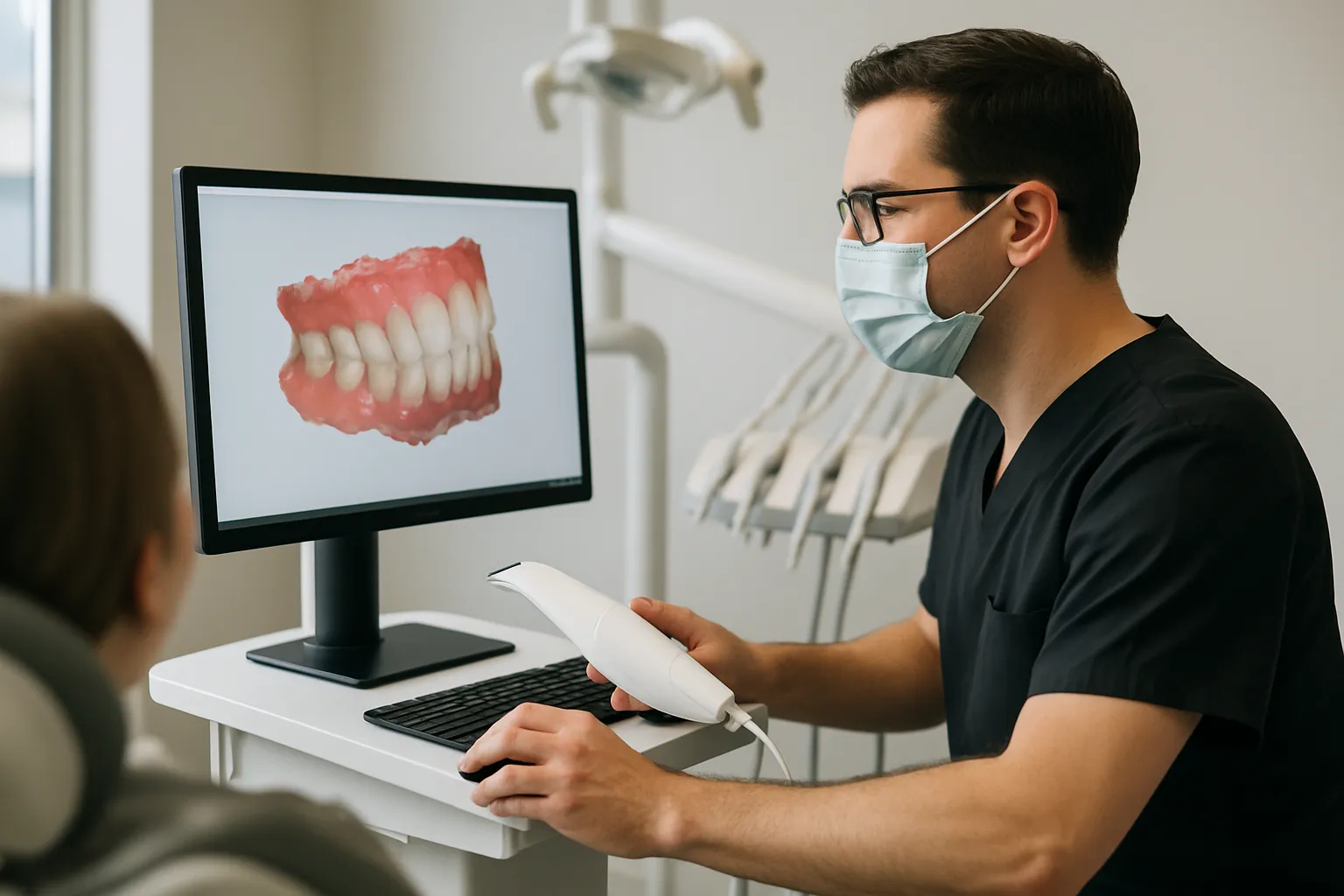
Choosing the right intraoral scanner output file type is essential for UAE dental clinics aiming to achieve seamless digital integration with their dental laboratories. File compatibility directly impacts how efficiently and accurately digital impressions are shared, which in turn affects turnaround times and the risk of workflow disruptions. Many clinics encounter challenges such as delayed cases, remakes, or additional costs when their scanner’s output is not readily accepted by their preferred lab (W9).
This article provides practical steps for evaluating your scanner’s export options, explains the main file formats used in dental workflows, and offers brand-inclusive guidance relevant to the UAE context. Whether you are onboarding a new lab, upgrading digital equipment, or troubleshooting file transfer issues, you will find actionable advice on selecting and communicating the optimal file type for smooth lab integration.
Understanding Intraoral Scanner Output File Types
STL, PLY, OBJ, and DCM: What Do They Mean?
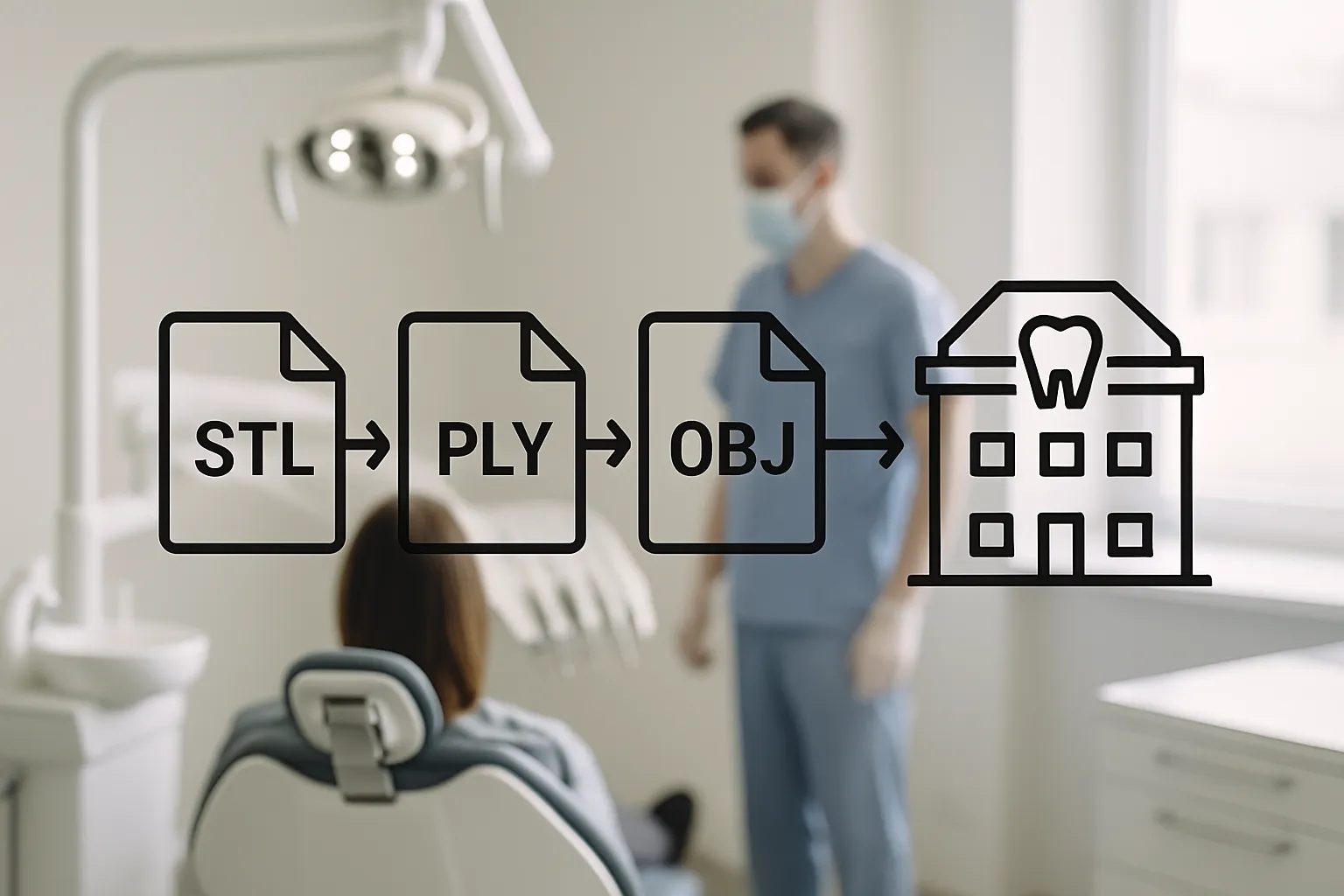
Intraoral scanners typically export digital impressions in several common file formats: STL, PLY, OBJ, and DCM. STL (stereolithography) files contain detailed 3D geometry of the scanned surfaces, making them widely used for restorative and prosthetic workflows where precise shape is essential. However, STL files do not store color or texture information. PLY (polygon file format) and OBJ files both include 3D geometry along with color and, in some cases, surface texture data. This makes them suitable for applications where visual information, such as gingival shade or tooth color, is relevant. DCM (DICOM) files are less common for intraoral scanners but are used in radiology and some advanced dental imaging systems, typically containing volumetric data. In practice, STL is the baseline format for most dental labs, while PLY and OBJ are increasingly accepted for enhanced diagnostics and communication.1,2
Why File Compatibility Matters for Dental Lab Integration
File compatibility directly impacts the efficiency and reliability of digital workflows between dental clinics and laboratories. When a scanner exports files in a format the lab can readily accept, communication is streamlined and treatment timelines are maintained. Conversely, incompatible file formats can cause significant disruptions—labs may be unable to open or process the files, leading to delays, potential remakes, or extra fees for file conversion or troubleshooting. This is particularly relevant when working with multiple labs or international partners, where accepted file types may vary.
Open-format files, such as STL, are especially valuable for seamless sharing, as they are widely supported by most dental labs and software platforms. Ensuring your scanner outputs files in these formats reduces the risk of workflow interruptions and supports predictable case outcomes. Establishing file compatibility as an early step in lab integration helps avoid unnecessary complications and ensures smoother digital collaboration.
Common File Types Accepted by UAE and International Dental Labs
Across the UAE and internationally, most dental laboratories accept STL files as the primary standard for digital impressions. STL files are valued for their broad compatibility and reliable geometry capture, making them the baseline format for restorative and prosthetic workflows in both local and global settings. Increasingly, labs are also supporting PLY and OBJ files, which include color and texture data—features that can enhance communication for more complex cases and aesthetic work. This trend is particularly relevant for clinics that wish to leverage advanced intraoral scanner capabilities.
When working with international labs, it is important to confirm their file format preferences and any specific requirements for data transfer. Some labs may have direct connections for certain scanner brands, while others rely on open-format uploads. Staying updated on available dental equipment in Dubai can help ensure your scanner output aligns with both UAE and international lab workflows.
Evaluating Your Scanner’s Output Options: Panda and Medit Examples
When working with popular intraoral scanners such as the Intraoral scanner MEDIT i900 and Panda intraoral scanner, it is essential to understand how to check and select the appropriate export file formats for lab workflows. Both brands typically allow users to choose between STL, PLY, and sometimes OBJ formats directly from their software’s export menu. For most restorative and prosthetic cases, manufacturers generally recommend STL for its widespread lab compatibility, while PLY or OBJ may be preferred when color or texture data is needed for advanced applications. To ensure seamless integration, review the scanner’s export settings before each case and confirm with your lab which formats they accept. Detailed guidance on export procedures is available in the user manuals and support sections for both Medit and Panda scanners.
STL vs PLY vs OBJ: Comparison Table for Dental Applications
Understanding the differences between STL, PLY, and OBJ files is essential for ensuring compatibility with dental labs and optimizing digital workflows. Each file type offers distinct features that impact geometry accuracy, color and texture capture, file size, and lab acceptance. The table below summarizes these key attributes and their practical relevance for restorative, orthodontic, and prosthetic applications.
| File Type | Geometry | Color | Texture | File Size | Lab Compatibility | Common Use |
|---|---|---|---|---|---|---|
| STL | Yes | No | No | Small | Widely accepted | Restorative, ortho, prosthetics |
| PLY | Yes | Yes | Limited | Medium | Increasingly accepted | Shade matching, aesthetics |
| OBJ | Yes | Yes | Yes | Large | Supported by some labs | Complex cases, research |
STL remains the baseline for most restorative and orthodontic workflows due to its broad acceptance and small file size. PLY and OBJ formats, which include color and texture data, are increasingly useful for cases where shade and surface detail matter, such as aesthetic restorations and digital smile design.
Checklist: Ensuring Seamless Digital Lab Integration
Before sending intraoral scan files to your lab, verify which file types are accepted by your partner. Most UAE and international dental labs accept STL files, and many also support native scanner formats or other open files such as PLY and OBJ (W4, W6). Confirm the lab’s preferred submission method—direct upload, email, or lab portal—during onboarding to avoid unnecessary delays or extra steps (W4). When onboarding a new lab or switching providers, request a written list of accepted file formats and clarify any specific requirements for file naming or case submission. Document these preferences and update your clinic’s digital workflow protocols accordingly. Effective communication is essential: include file type details in your case submission forms and confirm receipt with the lab. Address any uncertainties about compatibility before scanning to minimise the risk of remakes or additional fees (W9).
Troubleshooting Common File Transfer and Compatibility Issues
If your dental lab cannot open your intraoral scanner files, first confirm the file format you exported and compare it with the lab’s accepted formats. Scanner compatibility is critical, as incompatible files may require extra steps, fees, or even remakes, impacting workflow efficiency (W9). If a mismatch is identified, try re-exporting the scan in a different supported format—most scanners allow you to select from options like STL, PLY, or native formats. File conversion tools or software may also help, but always verify data integrity after conversion.
Many labs provide dedicated portals for file upload, which can streamline the process and minimize transfer errors (W4). If technical issues persist, contact your scanner manufacturer’s support or collaborate with your lab partner to resolve compatibility concerns. Early communication and clear documentation of file requirements can prevent recurring issues as digital workflows evolve.
Conclusion
Evaluating intraoral scanner output files is a key step in ensuring smooth digital lab integration for UAE dental practices. To optimise your workflow:
- Assess your scanner’s export options: Confirm which file types (such as STL, PLY, OBJ) your device can generate and understand their content and use cases.
- Check lab compatibility: Before sending files, confirm with your lab which formats they accept—STL remains the most widely supported, but PLY and OBJ are increasingly used for cases requiring colour or texture data (W3, W4).
- Communicate requirements clearly: Establish a protocol with your laboratory to document preferred file types and transfer methods, minimising delays and remakes (W9).
- Review scanner settings regularly: As digital workflows and lab capabilities evolve, periodically revisit your scanner’s export settings to ensure ongoing compatibility.
By following these steps and maintaining open communication with your laboratory partners, you can help ensure seamless digital case transfers and efficient restorative outcomes.
Frequently Asked Questions
What are the most common intraoral scanner output file types?
The most common file types are STL, PLY, and OBJ, each with different features for geometry and color.
Are STL files always compatible with every dental lab?
Most labs accept STL files, but it is important to confirm with your specific lab before sending.
How can I check which file types my scanner exports?
Refer to the scanner’s export menu or user manual for available file formats.
What should I do if my lab cannot open my files?
Contact your scanner provider or the lab for guidance on file format conversion or supported alternatives.
References
- A novel digital dentistry platform based on cloud manufacturing paradigm (2019)
- What File Types and Scanning Formats Should a Digital …
- How Important Is Scanner Compatibility When Choosing a …
Last updated: 2026-10-13
Related products at Nutrident

Dentist, Iran Medical Council registration No. 233463 · Last reviewed: 13 October 2026
Nutrident educational content is based on credible sources and reviewed under his supervision. This article is for professional education and does not replace clinical examination or the judgement of the treating dentist.